To reset your password, follow steps 1-3. If you are unsuccessful after the 3rd step, continue to step 4+ until you are successful.
Step 1: Navigate to the login page, https://ne.amplifund.com/account/Login.aspx
NOTE: This is the Nebraska AmpliFund site, not the National AmpliFund site.
Step 2: Click “Forgot your password?”
Step 3: Enter in your email address and click Submit.
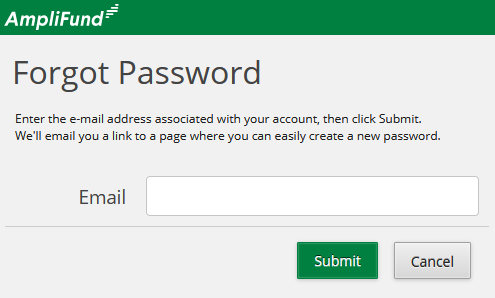
After clicking submit, you receive an email with a link to change your password.
Why is the ‘Forget password’ not sending me an email?
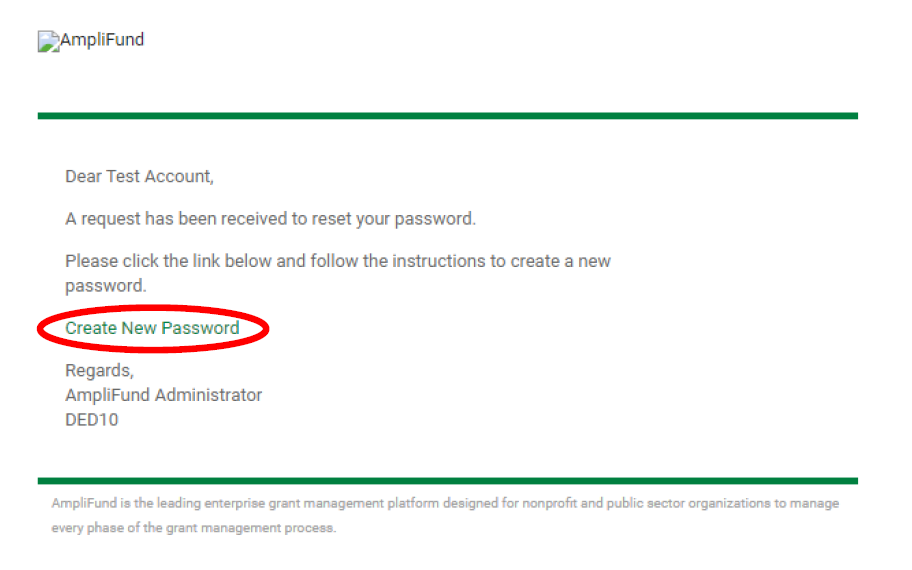
Step 4: Check your “Junk,” “SPAM,” or “Promotions” folder. The email looks like the following:
From Email Address, AmpliFund Administrator: no-reply@gotomygrants.com
Clear Cache and Verify Browser is Up To Date
Step 5: Clear the cache of the browser you are using, verify you are using a supported browser and it is up-to-date.
Try Steps 1-3 again.
Verify You Have Registered your Email Address
Step 6: Navigate to the AmpliFund homepage, https://ne.amplifund.com/account/login.aspx?returnUrl=%2Fpublic
Step 7: Click “Register”
Step 8: In the User Information section, enter the email address you are trying to reset, and left click outside of the Email Address field.
-
If “An account already exists for this email address” red text appears, move to Step 9.

- If a green checkmark appears, you have not registered your email address. You will need to have another user from your Organization add you to their account. If your Organization has never had an AmpliFund account before, you can register.

Add to Safe Sender List (Whitelisting)
Step 9: In your email software program, add no-reply@gotomygrants.com to your Safe Sender list.
Try Steps 1-3 again.
Contact AmpliFund Customer Support
Step 10: Contact AmpliFund Customer Support and communicate that you need help resetting your password.