NOTE: It is the Organization’s responsibility to maintain their account Users and Security Roles.
NOTE: Some recipients use a third-party outside of their own organization to apply or manage their award. This third-party is referred to as an External User (e.g. contractor, certified administrator, etc.). The External User must be added as a user to the recipient’s account. For more information, see the ‘External User’ guide.
Table of Contents
| Applicant Portal |
| Recipient Portal |
Applicant Portal
NOTE: If you are adding an External User to your account to submit an application on your Organization’s behalf, stop and please contact AmpliFund Customer Support for assistance. For more information, see the ‘External User’ guide.
Step 1: Login to AmpliFund https://ne.amplifund.com. You will now be in the Applicant Portal.

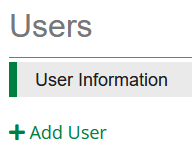
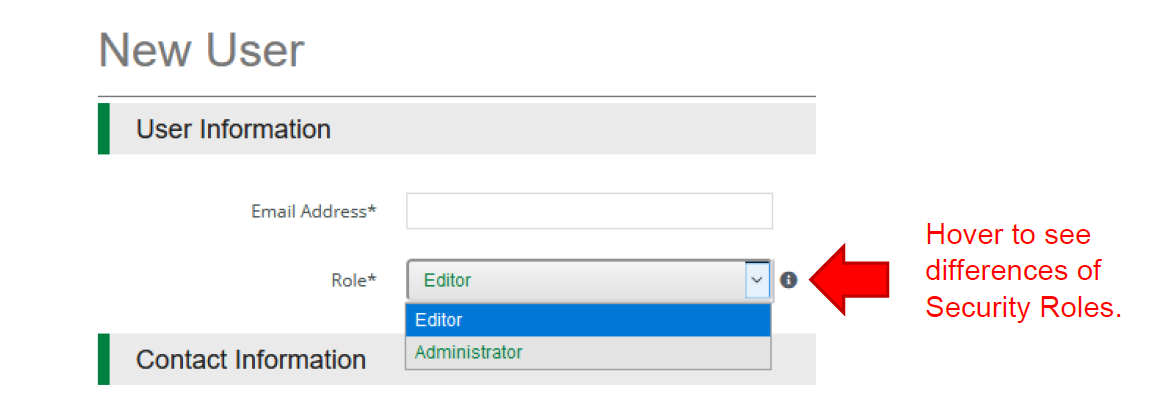

Error when Clicking green Invite button
This user either has an Applicant Portal or a Recipient Portal. In order to be added into multiple Portals, please contact AmpliFund Customer Support.
NOTE: Organizations (including External User Organizations) will want 1 account. Additional users then can be added to that 1 account. Individual users should not create individual organizations. Verify your Organization doesn’t already have an AmpliFund account before registering to create a new one.
Recipient Portal
NOTE: You must have an ‘Account Admin’ security role to add/edit users.
Step 1: Login to AmpliFund https://ne.amplifund.com. You will now be in the Recipient Portal.
Step 2: Navigate to Administration > System Security (left click the gray triangle) > Users
Step 3: Click the ‘+’ icon in the top right-hand corner.
Step 4: Complete the User Information section:
| Subscribe to Daily Emails: |
This option allows the User to receive notification, reminder, and update emails on the date they are scheduled. |
| Subscribe to Weekly Emails: |
This option allows the User to receive all notifications, reminders, and updates once a week in their inbox. |
| Departments: |
Leave blank, Recipients do not have functionality of the Departments feature. |
| Security: | Refer to 'AmpliFund Security Roles in the Recipient Portal' for more information regarding roles. |
Step 5: Complete the Staff Information section. 'First Name', 'Last Name', and 'Email Address' are all required to create a User.
Step 6: Click the green Create button to create the User.
Error when Clicking green Create button
This user has an Applicant Portal. To get their Applicant Portal turned into a Recipient Portal, please contact AmpliFund Customer Support.
How to Invite Users into AmpliFund
Upon inviting a User, they will receive an email invitation from AmpliFund (no-reply@gotomygrants.com) and will be prompted to click on a link to establish their own unique password.
Step 7: Upon creating the User, you will be able to click the ‘envelope’ icon in the top right-hand corner to invite that User into the system.