NOTE: This guide applies to External Users that have been added to 1 or more other accounts.
From the AmpliFund Home screen, you will be able to toggle to the different accounts that you have access to.
How to Switch Associated Accounts
Step 1: Left click on the Organization Name in the top right corner, then select another Organization from the dropdown.
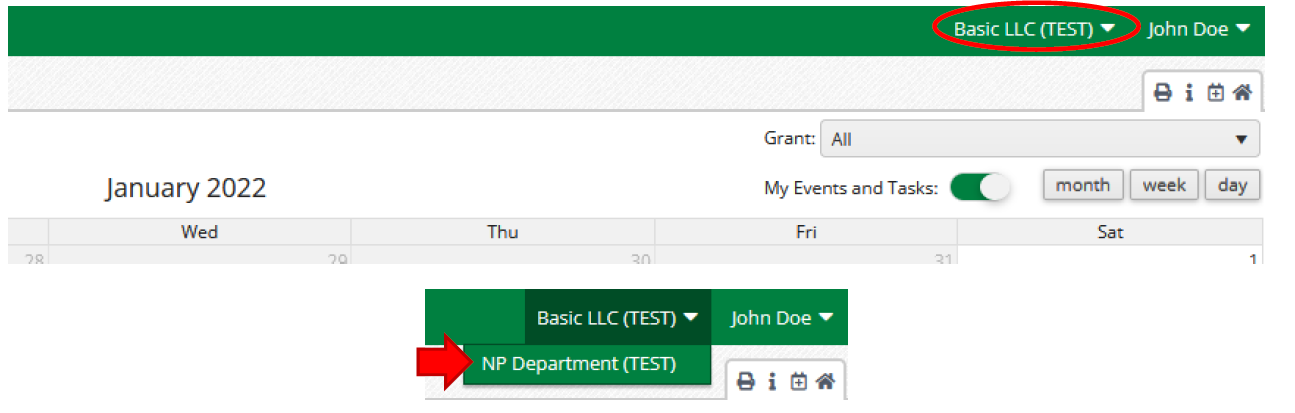
Step 2: It will prompt you to confirm switching the account you are logged into, click the green Change Organization button.
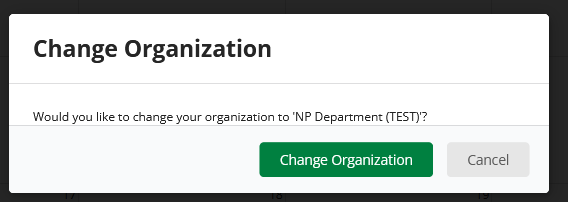
Step 3: Verify the Organization you want to be switched to is now to the left of your User Name.
Viewing Awards
When you are in the Organization’s account that you would like, you are able to navigate to an Award.
The awards you can view/edit will depend on the security role you have been assigned as well as if you are assigned the Recipient Grant Manager for the award.
NOTE: You will need to toggle to each Organization’s account separately to look at their Awards.
Navigating from the Recipient Portal to the Application Portal
Step 1: Click on your name in the top right corner.
Step 2: Click on the Applicant Portal option in the dropdown.
NOTE: If you do not have an 'Applicant Portal' option for the associated account you are trying to view, you will need an Organizational Admin from that account to add it to your User profile.
Step 3: Verify the correct Organization is under your User Name.
Navigating from the Applicant Portal to the Recipient Portal
Step 1: Click on your name in the top right corner.
Step 2: Click on the AmpliFund option in the dropdown.
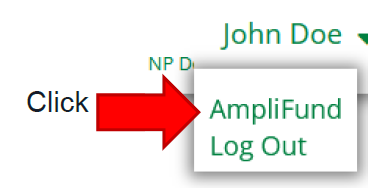
Step 3: You are now in the Recipient Portal, verify you are in the correct Recipient Portal you need to be in, or switch associated accounts again.
Next Article
External User Guide - How to Apply on Behalf of another Organization